
Manual de cargas MyHTG
14/03/2022Manual de registro MyHTG
15/10/2021Version 30/09/2021
Manual for vehicle fleet self-management
Al entrar en la plataforma tendrás acceso al menú principal. Aquí puedes pulsar sobre el apartado “Vehículos” para comenzar a anunciar tus vehículos.
When you enter the platform you will have access to the main menu. Here you can click on the “Vehicles” section to start advertising your vehicles.

CREATION OF VEHICLES
In the first access the vehicle table will be empty. To create a new registration click on “New vehicle” and fill in at least the following fields:
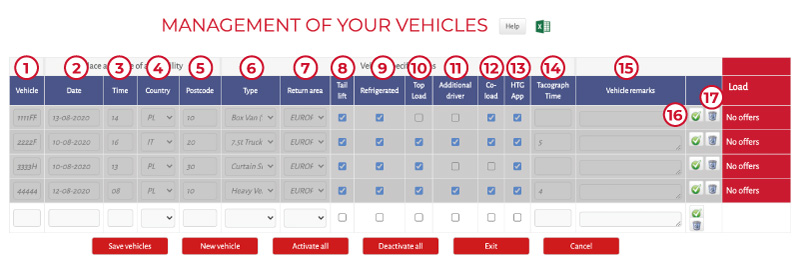
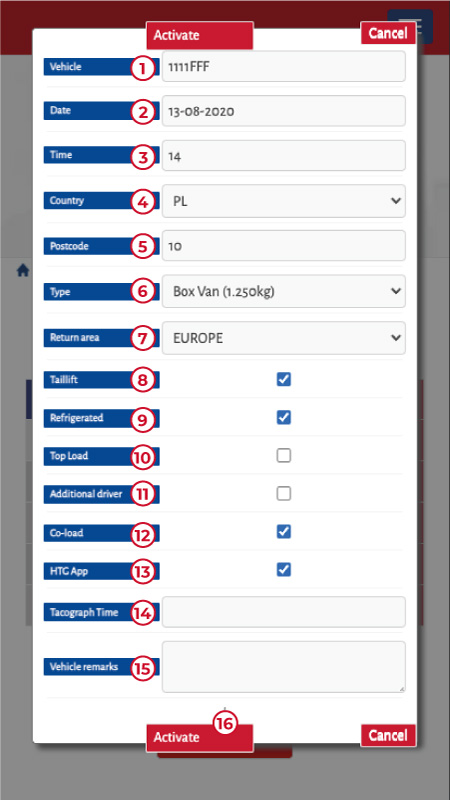
- Vehicle:License plate or other vehicle identifier.
- Date: Day of availability of the vehicle (format: dd-mm-yyyy). It cannot be a date in the past
- Time: Time of vehicle availability (hh:mm). It cannot be a time in the past.
- Country: Where the vehicle is located on the date indicated.
- Postcode: Postcode of the area where the vehicle is located.
- Type: Type of vehicle, choosing from the drop-down menu.
- Return: Country where the vehicle is returning to.
- Platform: Does it have a tail lift?
- Frigo: Is it a temperature-controlled vehicle?
- Top loading: Can the vehicle be loaded by the top?
- Double driver: Are there at least two drivers?
- Load: Check this box if your vehicle is loaded and has free space. Indicate in the remarks how much free space (metres/pallets/weight) is available.
- HTG App: Does the vehicle have the HTG App available?
- Disk hours: Disk hours available
- Remarks: Issues to be taken into account by HTG Express
- Active/Inactive: By clicking here you can define the status of each vehicle.
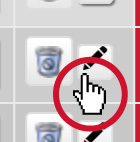
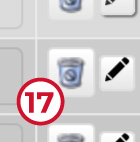
Trash: To delete a vehicle from the list.
BUTTONS

Save vehicles: It is necessary to save all the changes

New vehicle: to add a new vehicle to the list.

Activate all: group update to activate all vehicles at once.

Deactivate all: group update to deactivate all vehicles at once.

Exit: Exit after saving changes first.

Cancel: Exit without saving changes
MATCHING LOADS
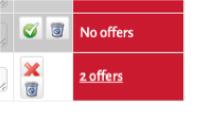
If the characteristics of a vehicle match a load published by HTG Express, it will appear in the red band and you will be able to go directly to consult it and bid it.
Warning: If you are going to leave the page or perform any other action without saving, you will receive the following message: “There are unsaved changes”.
UPDATE OF VEHICLES ALREADY CREATED
Each time you log in, you will simply have to update the information of each vehicle:
- – Active registrations: in white colour, you can modify the data without having to click “Activate” or you can click “Deactivate” to temporarily cancel the vehicle.
- – Deactivated registrations: in grey, you can click “Activate” to indicate the new availability: date, time, place, country, zip code, etc…
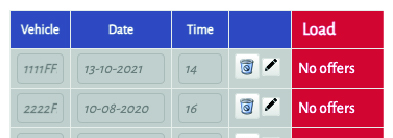
Remember that, when updating, you will see the matching loads: if the characteristics of a vehicle match those of a load published by HTG Express, it will appear in the red band and you can go directly to consult it and make an offer.

You can also download an Excel file with the management of your vehicles already updated for use with other customers.
NOTIFICATIONS
If you are not on the MyHTG Suppliers platform and HTG Express publishes a new load that matches one of your active vehicles, you will receive an email notification so that you can enter and bid for it.
If in doubt, please contact Suppliers@htg-express.com.

 @htgexpresstransport



Empresa beneficiaria de las ayudas para la modernización de empresas privadas de transporte de viajeros prestadoras de servicios de transporte por carretera y de empresas privadas que intervienen en el transporte de mercancías por carretera, según lo dispuesto en el Real Decreto 902/2022, de 25 de octubre, en el marco del Plan de Recuperación, Transformación y Resiliencia –Financiado por la Unión Europea– Next Generation EU.